Registering the Program
When the program starts up you should see the registration form appear, which is a reminder to register the program if you decide you want to. Registration involves the payment online of a registration fee, a few minutes after which you receive an unlock code by email.
Advantages of Registration
- Registered users can have as many decks as they like in their My Decks list - otherwise there is a limit of three decks.
- Registered users can organise their Decks, Spreads and other files into a flexible hierarchy of sub-folders.
- Registered users can download and install Decks, Spreads and Pop-up notes from the relevant Exchanges and also share their own creations.
- Registered users can show their profile with a link to their business, home page etc.
- Registered users can add comments and join in the discussion about decks on the Deck Exchange.
How to Register
To register you need to buy a licence on the website www.orphalese.net using PayPal. If you do not have a PayPal account you can still arrange one-off payments through them using a credit card.
The licence can be a User Licence or a Single Machine Licence. A User Licence allows you to have three machines active at any given time. For example you might have a machine at home, a work machine and a laptop, all of which you can install upgrades on and continue to unlock with the unlock code you received when you register the program. In the natural course of events you replace computers as they wear out. Over time you can install the program on as many machines as you like and continue to unlock them, but you need to remember that only three are active, and you cannot go back to a deactivated machine and receive updates on it, so you should only deactivate machines that have been permanently disposed of.
The Single Machine Licence works in a similar way but you only have one active machine at any given time, not three. Again, over time you can install the program on as many machines as you like and continue to unlock them, but each time you unlock a new machine the previous one becomes deactivated.
On registration you will receive an unlock code by email. If you have already received your payment confirmation from PayPal but have not received an unlock code then please send a message using the contact form on the website. This is unusual but can happen if there is a problem with our server at the moment of registration.
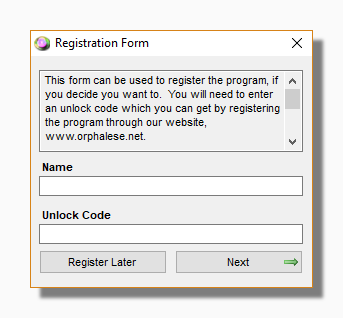
To unlock the program there are two stages. First enter the user name and unlock code in the spaces provided in the unlock form (below) and press "Next".
Tip: Note that the user name field is case-sensitive.
You will then see a screen similar to the following:
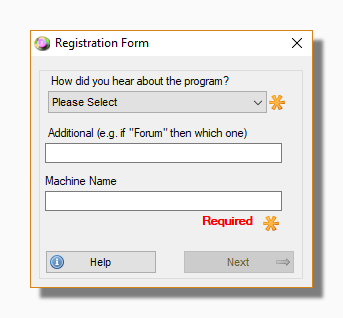
Here you should enter a name that you can use to identify the computer you are using right now. This can be anything you like. It will be helpful later if you need to manage your machines. You can also leave some feedback on how you heard of the program.
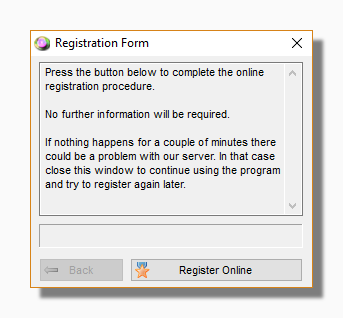
Finally press the "Next" button to complete the process. After a short time you should see a message telling you that your registration has been successful. If you see an error message please contact the programmer by using the contact form on the website. Please make sure you include the complete wording of the message as this will help to resolve the problem more quickly.
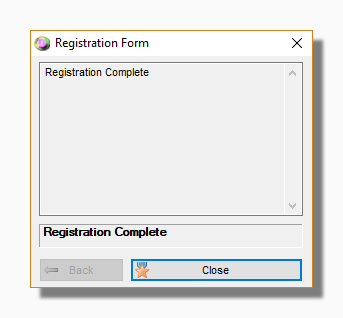
If you have bought a User Licence you will now be shown the Machine Profiles tool for information purposes. This will appear each time you unlock a new machine.